Chats and the chat list
Your Chats tab is the list of conversations. Open a row to read and send messages.
What you'll need
Open the chat list
- Tap Chats in the bottom (or side) navigation.
- Tap a conversation to open the thread.
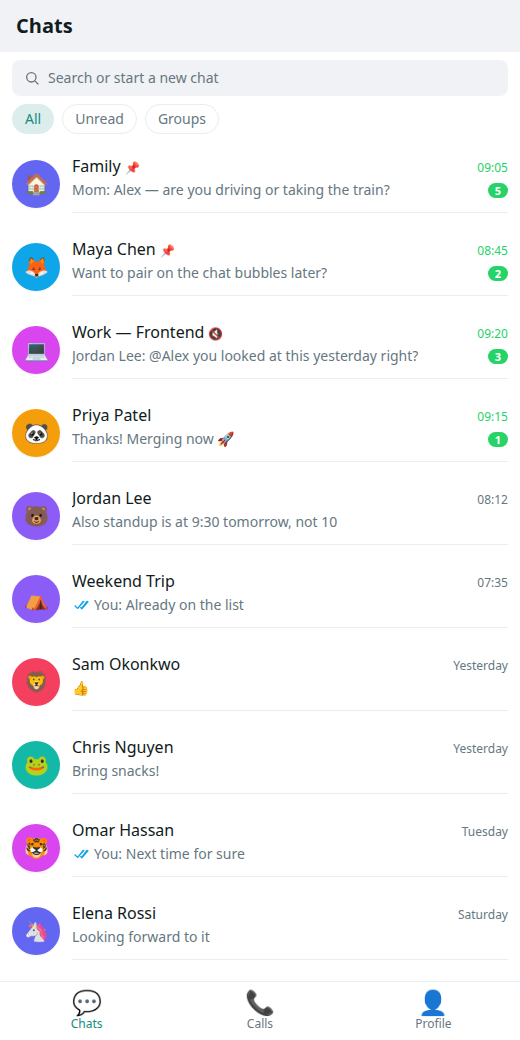
Search chats
- On the Chats list, open the search field (magnifying glass or search bar at the top).
- Type a name or a word from a recent message.
- Tap a result to open that thread.
Filter unread and groups
- On the Chats list, look for filter chips or the filter control near the top.
- Choose Unread to show only conversations with new messages.
- Choose Groups to show group chats only.
- Clear the filter to see everyone again.
Reply to a message
- Open a chat thread.
- Long-press (or open the message menu on) the message you want to answer.
- Tap Reply.
- Type your answer and send.
Emoji and reactions
- Open a chat thread.
- Tap the emoji control next to the composer (or long-press a message for reactions, if available).
- Pick an emoji. It appears in the thread.
Shared files in a chat
- Open a chat thread.
- Open the thread menu (⋯) and choose Files, or open the Files tab for that chat.
- Browse attachments shared in this conversation.
- To keep a copy in Drive, use Save to Drive when offered — see Drive.
Chat settings
Settings → Chats is reserved for upcoming chat preferences (for example default notification behaviour per chat).
Today you can still:
- Control theme under Appearance.
- See delivery honesty with ticks.
The panel may show a short “coming soon” note until those preferences ship.
What you should see
- Unread chats show a badge on the list.
- Search narrows the list as you type.
- Replies quote the original message in the thread.
If something goes wrong
- Empty list: add a contact first — Add a contact or Talk now.
- Search finds nothing: try the contact’s display name, then clear filters.
- More help: Troubleshooting.