Edit your profile
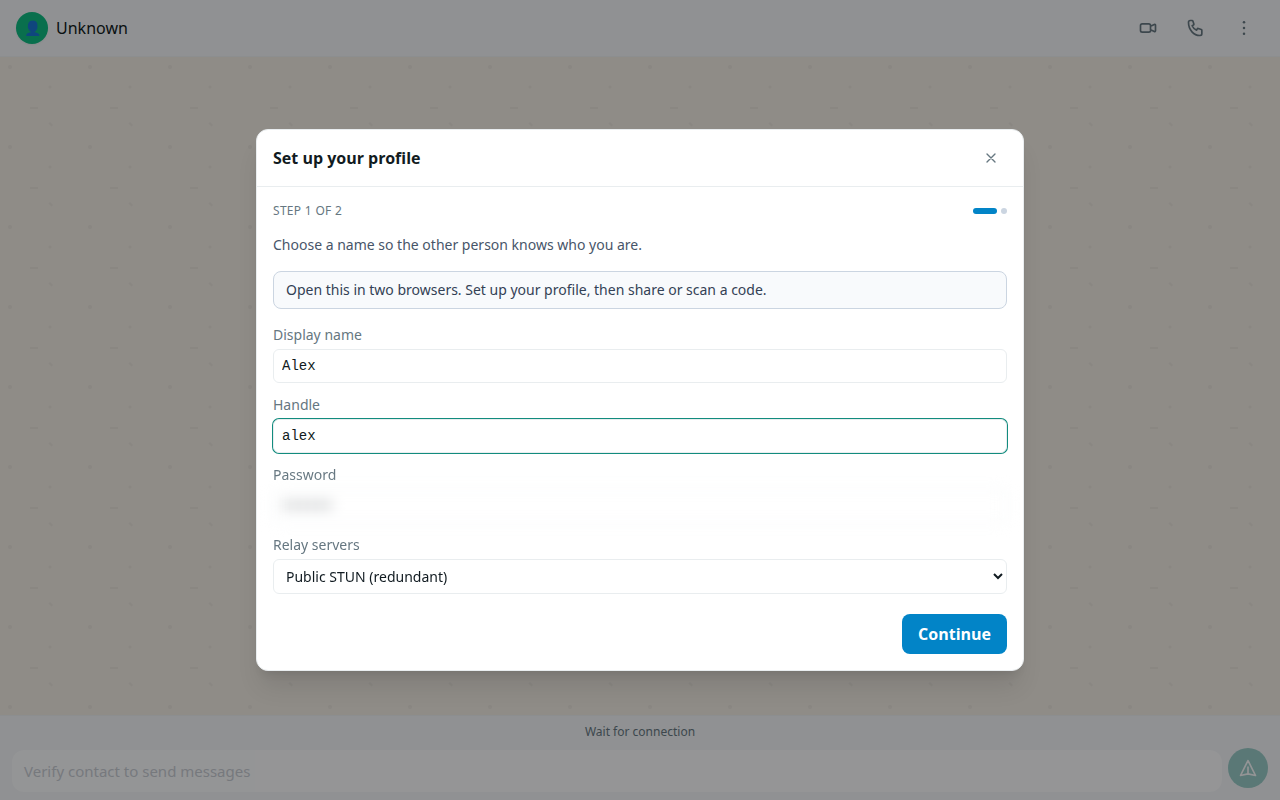
Your profile is how contacts recognise you: a display name, a handle, and an optional avatar or emoji.
What you'll need
- An open Glitr session (after Connect).
- A name you are happy for contacts to see.
Edit display name and handle
- Open Settings (or Profile in the nav).
- Open Profile.
- Tap the display name field and type your name.
- Tap the handle field and choose a short handle.
- Save if the screen shows a Save button (some builds save as you leave the field).
Avatar and emoji
- On Profile, tap the avatar / emoji control.
- Pick an emoji or image the app offers.
- Confirm. Contacts see the updated avatar on their side after the next sync or live update.
Share your mailbox URL
If you use a git mailbox, Profile is also where you copy the URL others need to add you.
- Attach remotes if you have not — Git remotes.
- Copy the share URL from Profile.
- Send it to your contact through a channel you trust.
What you should see
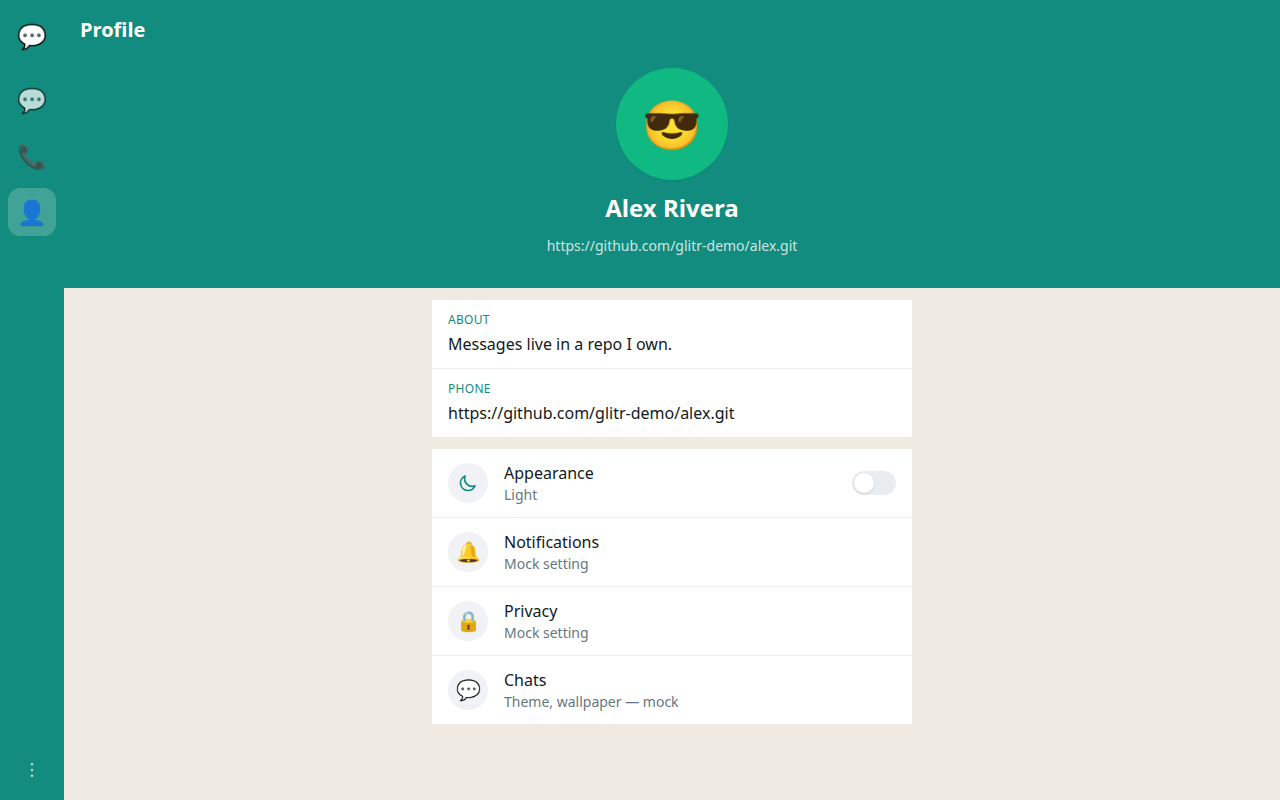
- Your new name appears in the Settings header and in chats (from your contacts’ point of view after they refresh).
- The handle looks unique and stable on this device.
If something goes wrong
- Prompted for a profile every launch: finish both name and handle — Troubleshooting.
- Contacts still see the old name: they may need a sync or a live reconnect.