Send, receive, and read receipts

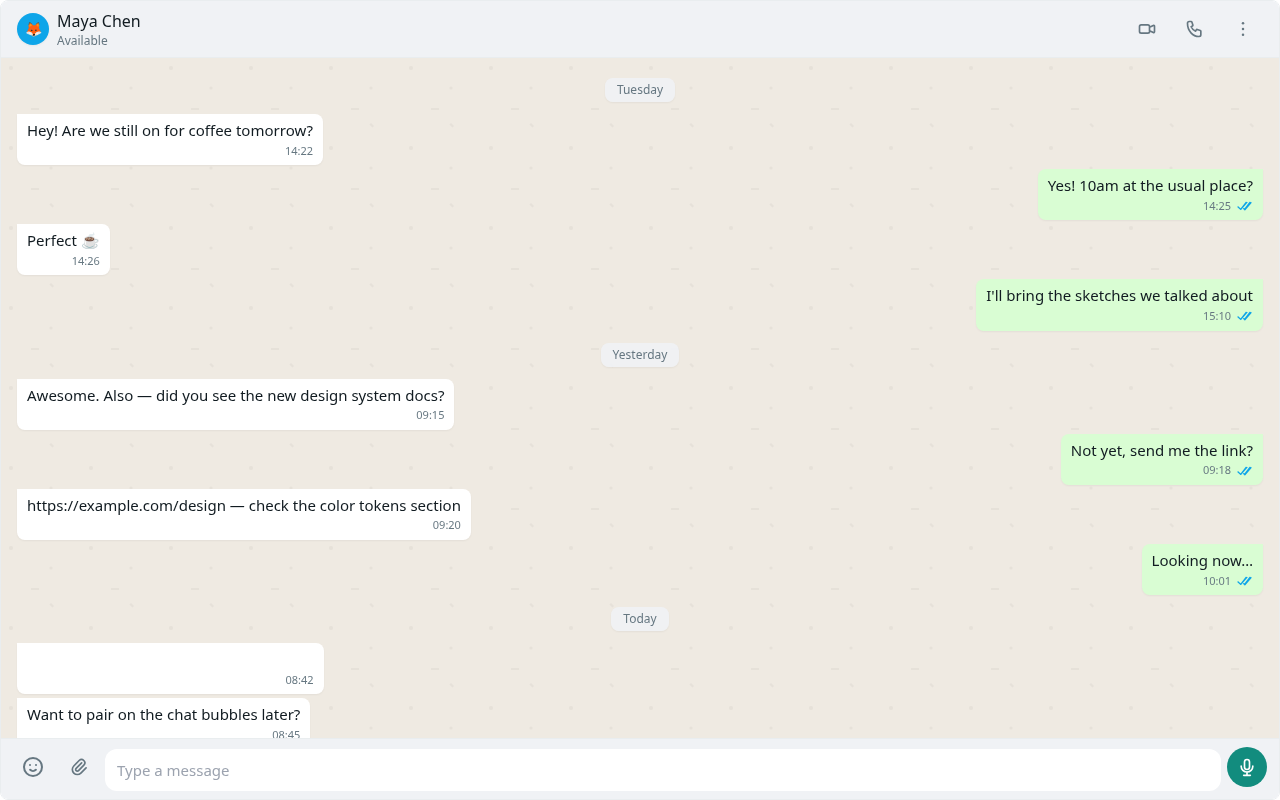
Sending in Glitr always feels local: you type, you hit send, a bubble appears. What the ticks mean depends on whether the contact is on git or live.
Before you can type
The composer is enabled when the contact is Active, Connecting, or Live.
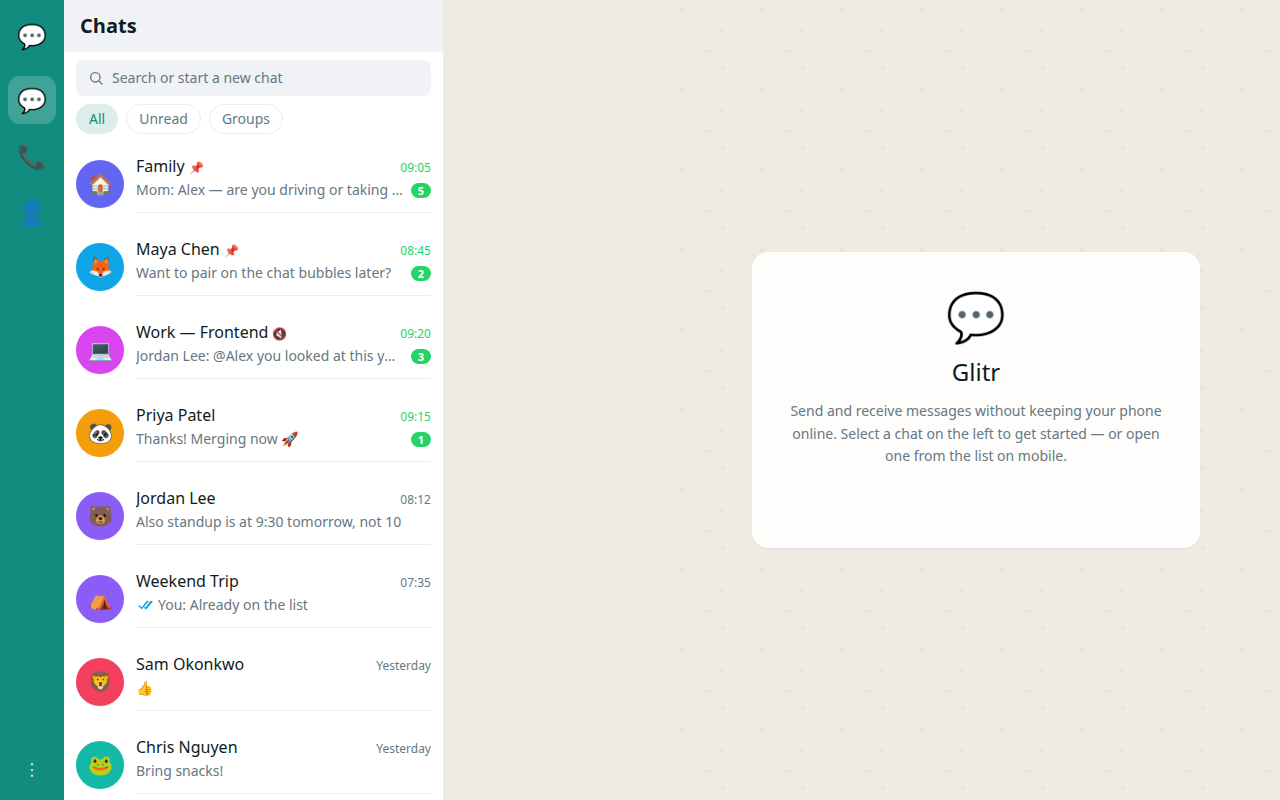
It stays disabled while they are Pending or Unreachable — Glitr does not yet have a profile to encrypt to. Finish setup on their side, or retry verify.
Connecting is not a gate. You can send while the live handshake is still running; those sends use git.
What happens when you send (git)
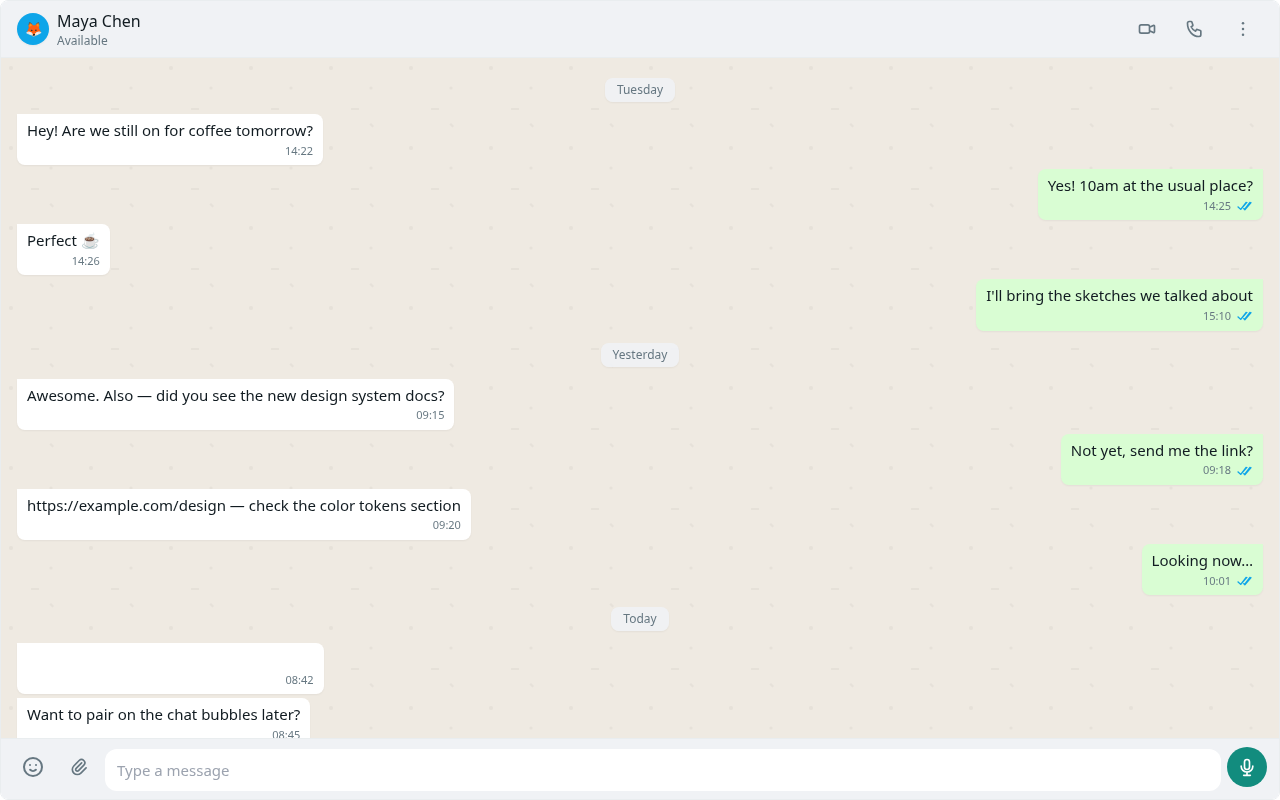
- Glitr writes the message locally. You see the bubble and a single tick.
- A background worker commits and pushes your repository. The payload for them lives in outbound on your mailbox, encrypted to them.
- When the push matches what was written, ticks become double gray — delivered to git, not yet read.
- Their app, on its next poll, fetches your repo (from a local clone it already keeps), decrypts outbound addressed to them, and inserts it into their inbox (encrypted at rest on their repo).
- When they open the thread, a read receipt is written on their repo (plaintext coordination). Your next poll turns ticks blue.
You do not wait on their device being online for steps 1–3. You wait on your push, then on their fetch.
What happens when you send (live)
If the header shows Live:
- The message goes over the direct link.
- There is no outbound row in git for that send.
- Double gray ticks mean they acknowledged on the link.
- Blue ticks mean they sent a read frame on the link.
If the link drops, the next text send uses git again (git-URL contacts). You do not flip a switch.
Files
The paperclip is available for Active git contacts and for groups (not only while Live).
- Live 1:1 — Glitr seals the whole file with the same cascade as a chat body, then sends the ciphertext in chunks on the data channel. The thread shows a progress bar (about once a second). You can cancel; a dropped link can resume when you are Live again. Soft cap: 32 MiB plaintext. No git outbound for that transfer.
- Git (offline DMs and every group send) — the file rides inside the outbound ciphertext envelope. Their next poll decrypts it into sealed inbox, same ticks as a text send. Prefer this path for small files; a large blob will grow the repository.
After either path finishes, a copy lives in local sent/inbox (sealed at rest).
Groups
Chats + → New group picks a title and members you already have as Active contacts. There is no shared group repository: one send writes one encrypted outbound copy per other member, all carrying the same groupId. Members ingest that copy into their own mailbox.
- Group sends always use the git path, even if some members are Live.
- Files on a group thread use the git envelope, not the live chunked transfer.
- Pair-now contacts cannot be group members until you add them by git URL.
This is fan-out, not a shared ratchet or MLS. See data structures.
Ticks
| What you see | Name | Git path | Live path |
|---|---|---|---|
| ✓ | Sent | Written locally; own repo has not pushed that commit yet | (rarely stays here) |
| ✓✓ gray | Delivered | Push of your mailbox succeeded | Peer ack on the link |
| ✓✓ blue | Read | Their read receipt has been processed | Read frame on the link |
The header also shows a sync indicator for the whole mailbox (poll, push). Ticks are per message; the indicator is global. If ticks disagree with the indicator, trust the ticks for that bubble and read the poll toast for the mailbox.
Receiving
You do not “check email” by hand unless you want to.
- Auto-poll runs on a short timer (on the order of ten seconds) and is local-first: it ingests from clones already fetched, then notes whether your own push has caught up.
- Poll now runs a pass immediately. If a poll is already running on the web, it cancels in-flight git HTTP and starts again. The label shows a countdown to the next automatic pass.
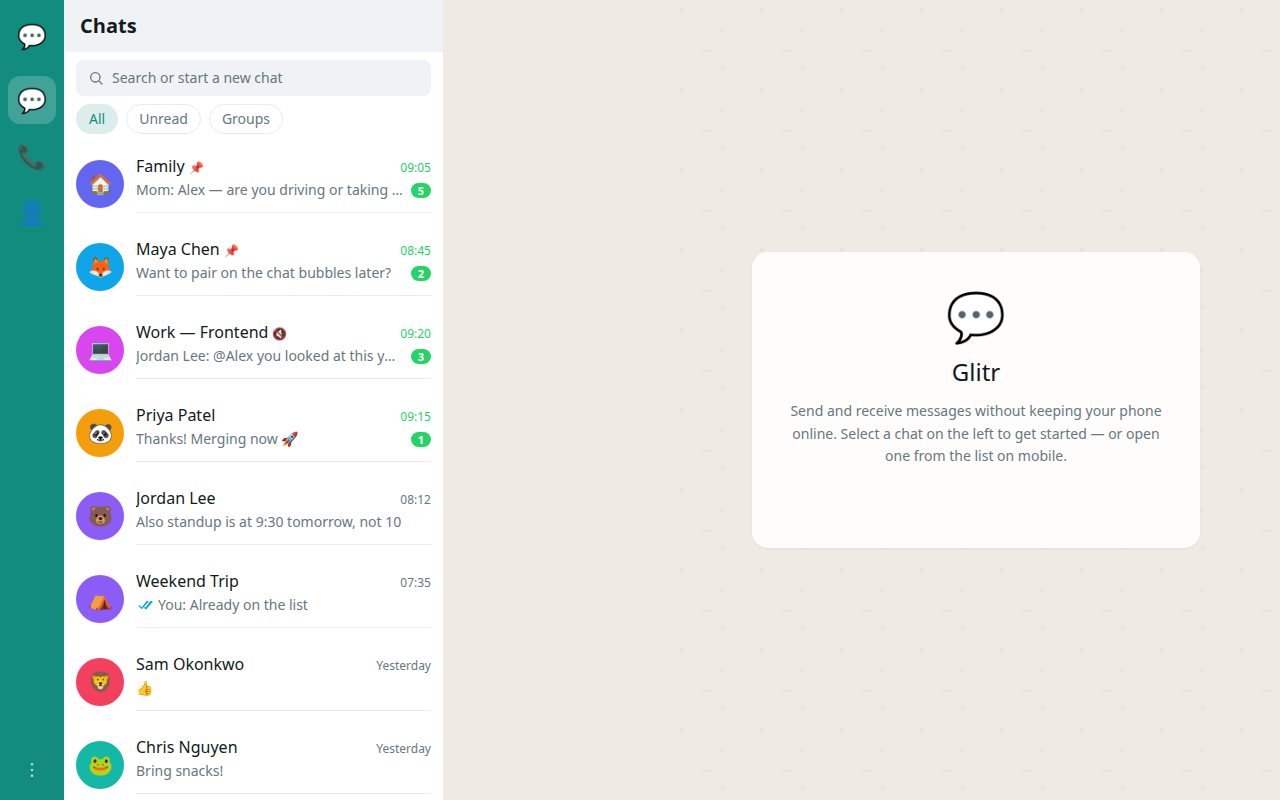
Open Chats to see new threads. Opening a thread is what creates the read receipt on the git path.
Sent history
A copy of what you sent is stored on your side (encrypted at rest). When a git message is fully read, outbound is cleaned up and the sent copy records that it was read. You can inspect a contact’s outbound from their details if you are debugging “did it leave my laptop?” — that view reads the last local clone, not a fresh network round-trip by itself.
Notifications
Poll toasts are on by default and can look technical (timings for fetch, ingest, push). They are there so a stuck mailbox is diagnosable. You can ignore them until something fails; then they tell you whether the delay was your push or their fetch. See Troubleshooting.