Your first conversation
Pick a track. Both end in a chat with ticks; they differ in what you need and what happens when someone goes offline.
| Talk now | Own a mailbox (this page) | |
|---|---|---|
| Start | Encryption password only | Two HTTPS remotes + tokens |
| Meet | Pair now (QR / paste) | Add each other by repo URL |
| Offline | No delivery until Live again | Git push / poll |
| Backup | Local workdir until you attach remotes | Host holds the mailbox |
The same steps work whether you are in the app or in the messaging experience.
Own a mailbox (two remotes)
This is the full path from zero to a message with ticks when you want a host mailbox. You need two people (or two browser tabs), two git repositories, and about fifteen minutes.
You will:
- Prepare two empty repositories with push access.
- Open Glitr twice and connect each repo (or start local-only and attach later).
- Set a profile on each side.
- Add each other by repository URL.
- Send. Optionally watch the chat go Live.
What you need
- Two HTTPS git remotes (call them Alex and Blair). Empty is fine. Glitr writes the layout on first connect or attach.
- A personal access token (or equivalent) for each remote, with permission to read and write repository contents. Clone-only tokens cannot send.
- On the web, a CORS proxy is required so the browser may talk to the git host. The app suggests a default. Use it for trying Glitr; for something you rely on, run a proxy you control.
- An encryption password per person. This seals documents in the repository. It is not recoverable. Write it down.
Do not reuse one repository for both people. Each person is a mailbox. Sharing a mailbox mixes identities.
1. Prepare remotes
Create two empty repositories on a host you are allowed to use. Copy each HTTPS URL (the https://…git form, not SSH). Create a token for each.
Token shapes differ by host:
- GitHub classic:
reposcope. - GitHub fine-grained: Contents: Read and write on that repository.
- GitLab / Codeberg: a token that can read and write the project.
Details and a warning about terms of service: Using GitHub, GitLab, and Codeberg.
2. Connect Alex
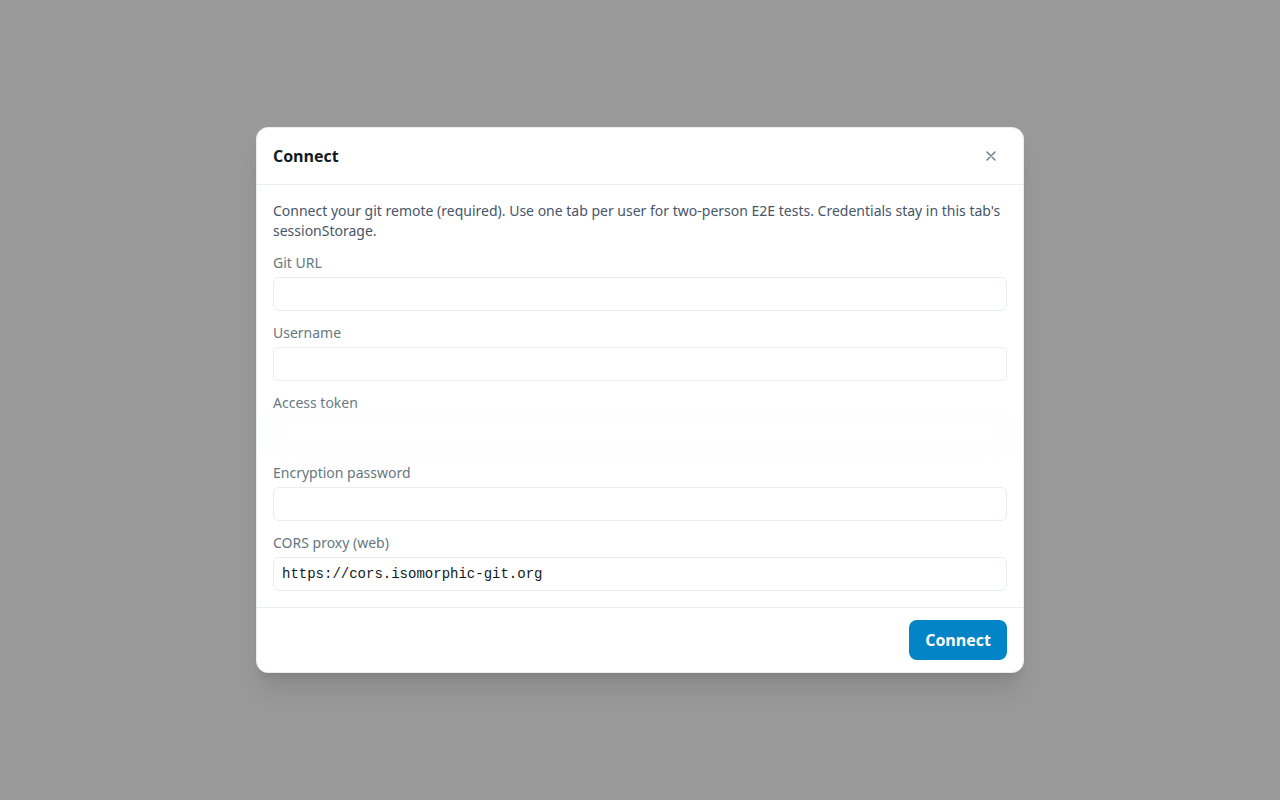
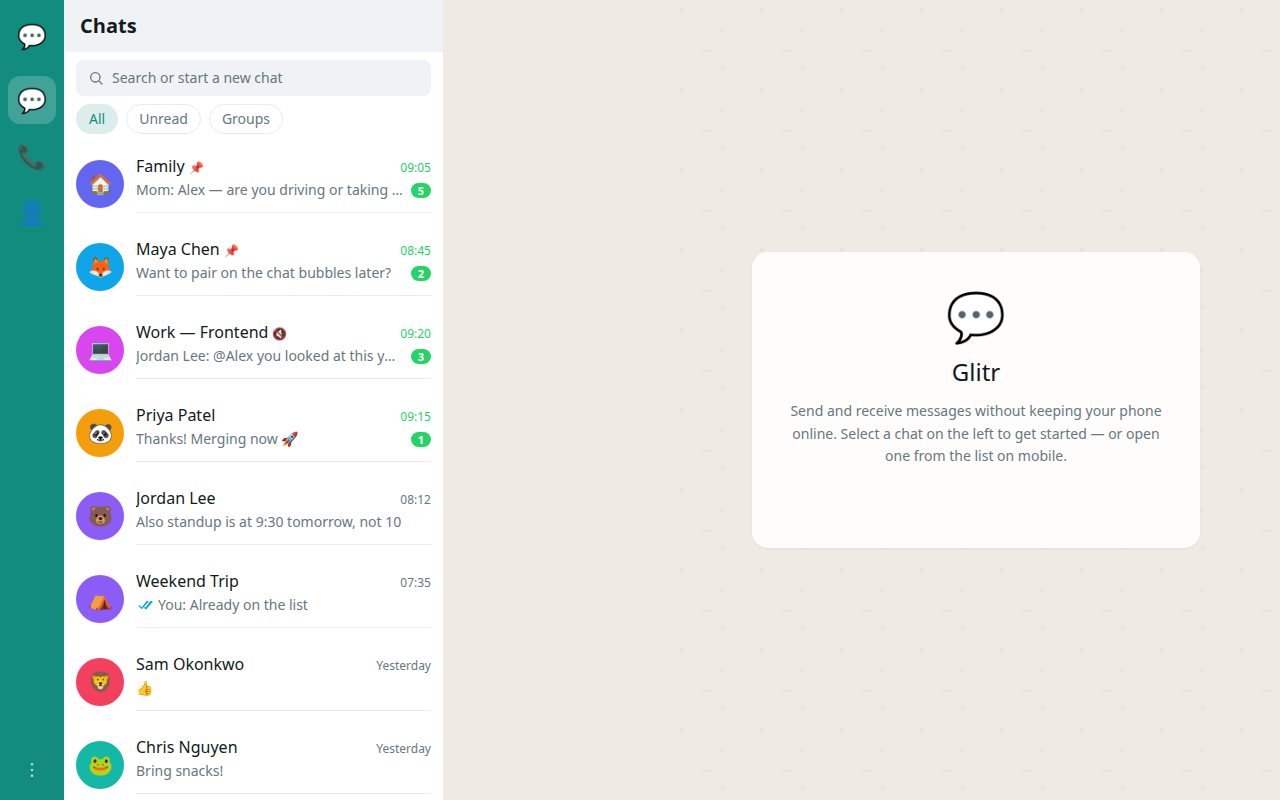
Open Glitr in a tab. Choose Connect git remote and enter:
- Git URL — Alex’s repository.
- Username and access token.
- Encryption password — choose one Alex will remember.
- CORS proxy — web only.
Submit. The first connect clones (or initializes) the repository and may take a few seconds. If the repo is empty, Glitr bootstraps it.
You can also Start on this device first and attach an empty remote from Profile later; local history is then the source of truth for a normal push.
If this tab still has credentials in session storage, a refresh reconnects automatically and shows chats from the local copy while sync continues in the background.
3. Connect Blair
Open a second tab (or a second device). Session storage is per tab, so the two logins will not overwrite each other in one tab. Connect Blair’s repository the same way, with Blair’s password.
4. Profiles
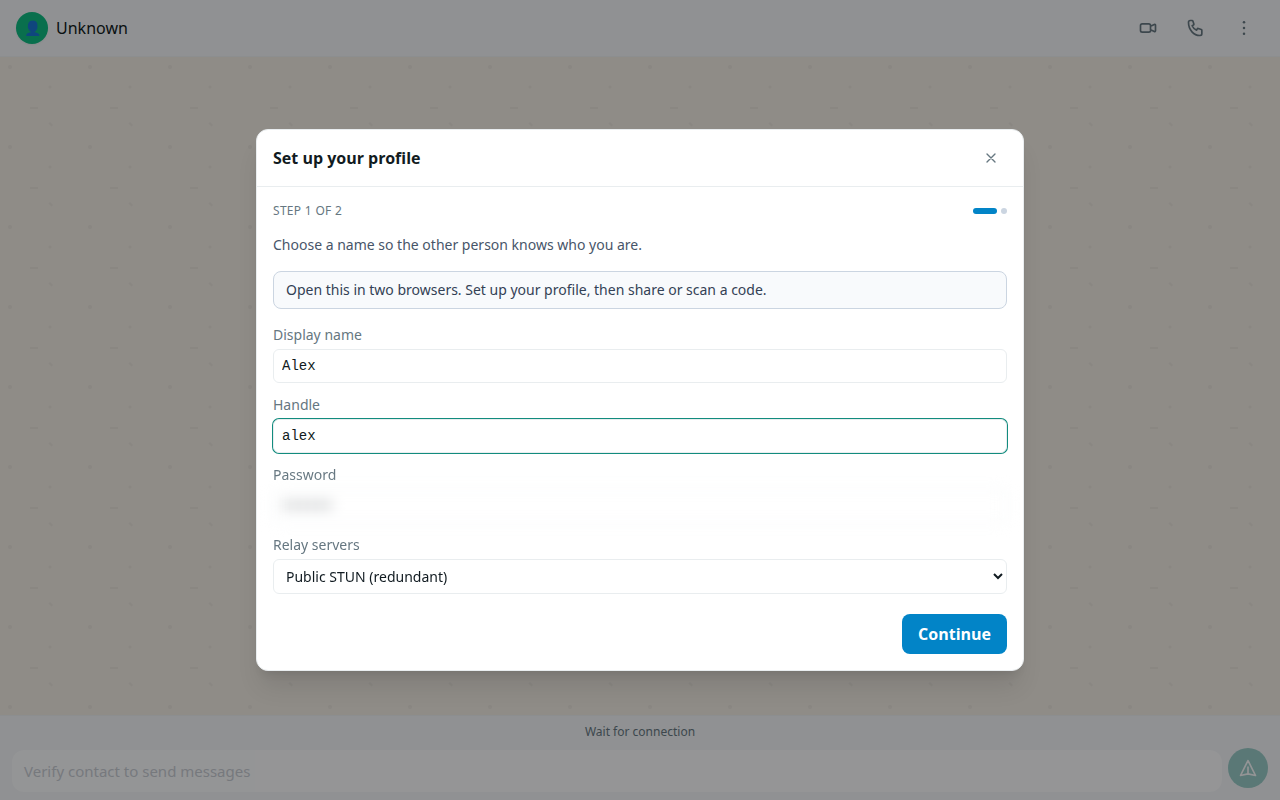
If prompted, set a display name and handle on each side. Until a public profile exists, the other person cannot verify the contact — they will see Pending.
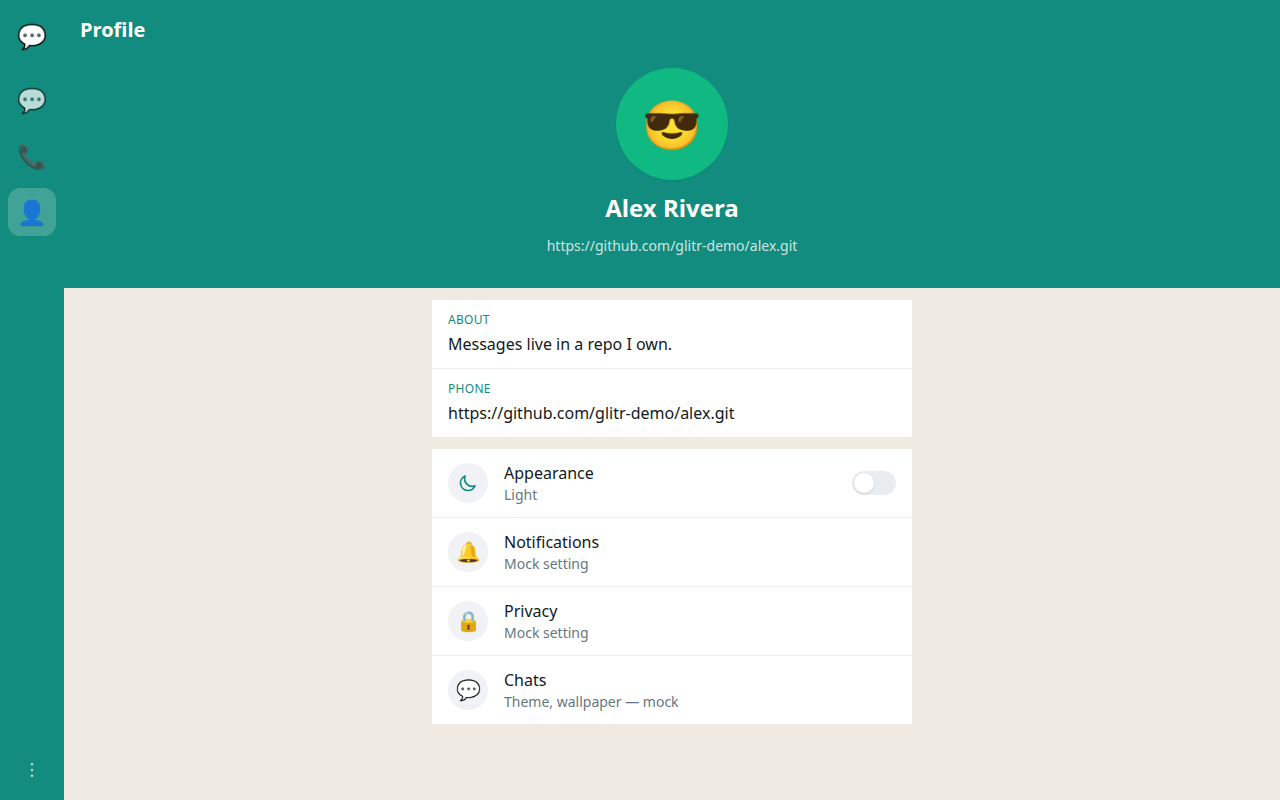
Open Profile on Alex. Under Git remotes, copy the URL you want to share (copy icon on the row). That string is how Blair will add Alex.
5. Add contacts
On Blair:
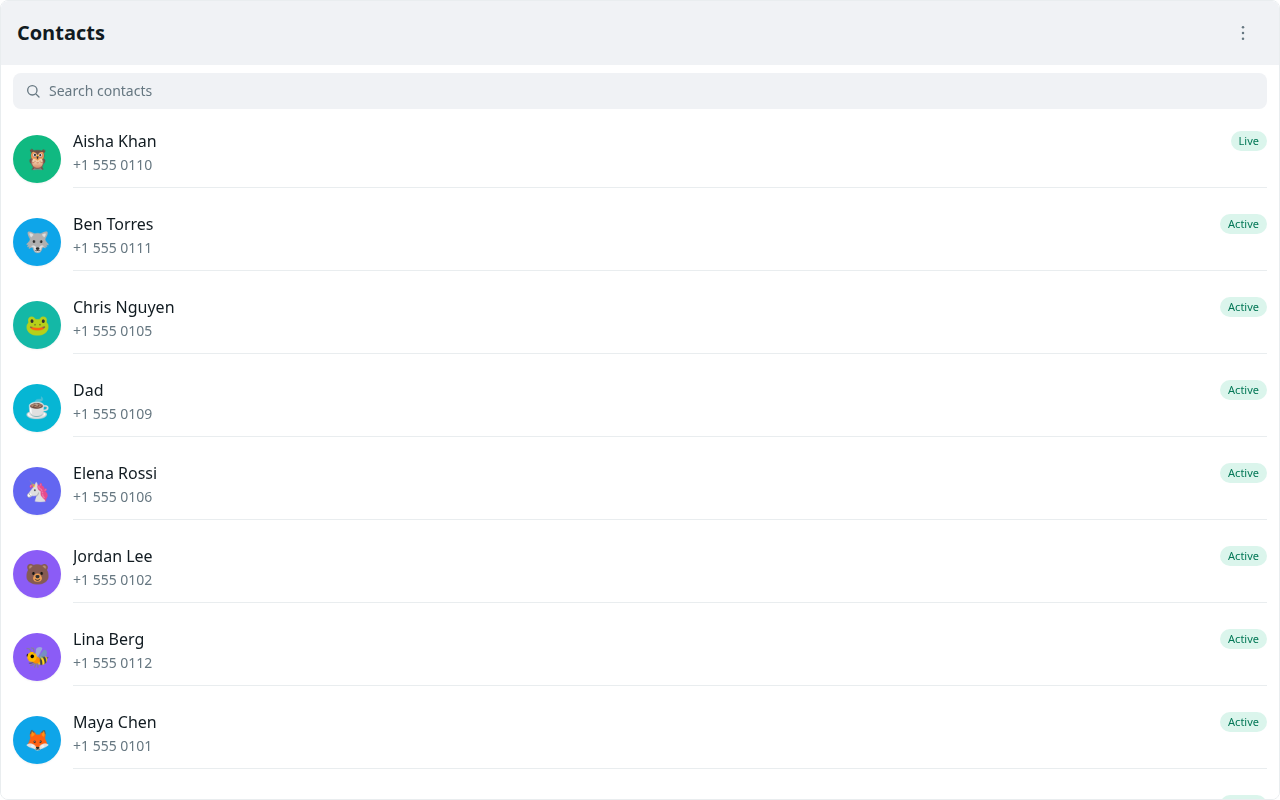
- Open Contacts.
- Add a contact → Git URL.
- Name:
Alex. - Peer git URL: the URL you copied from Alex’s profile.
- Username and token if Alex’s repository is private (Blair must be allowed to read it).
On Alex, do the mirror: add Blair with Blair’s repo URL from Blair’s profile.
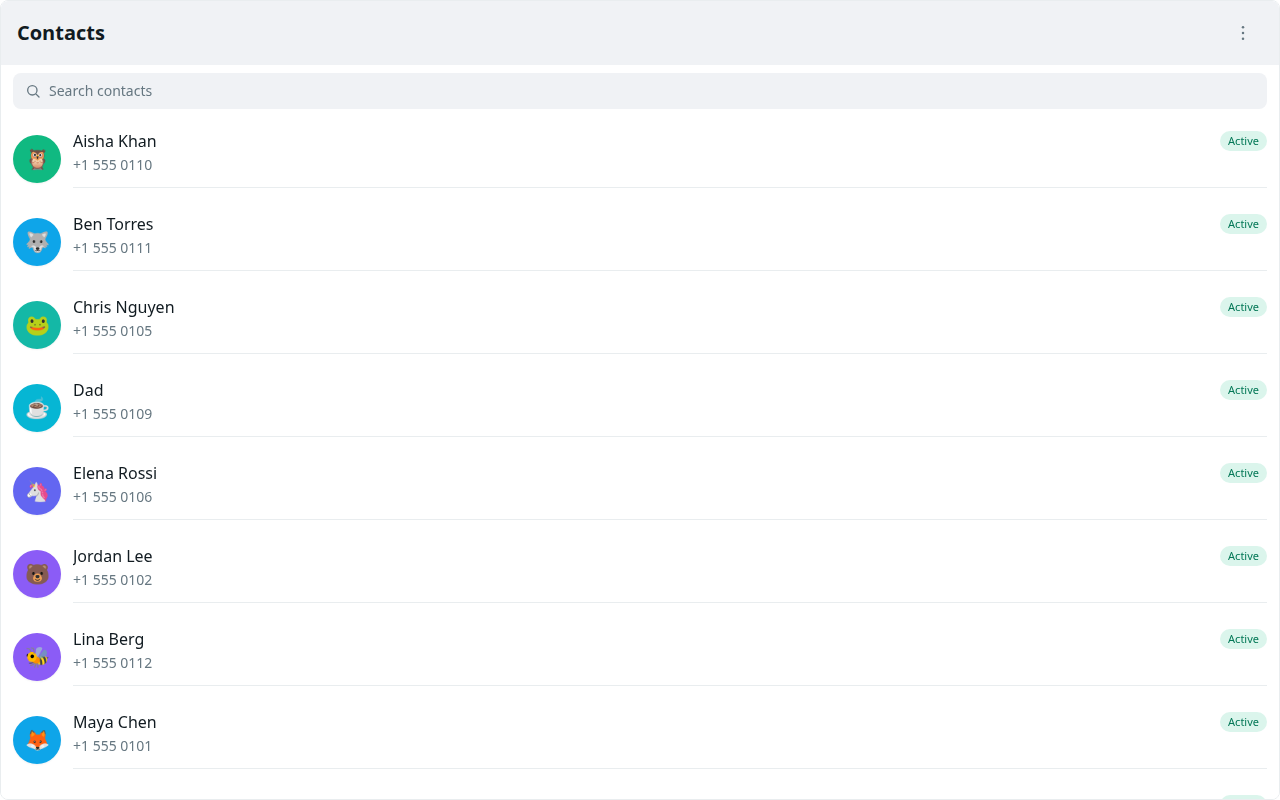
If the other side has not finished profile setup, the contact saves as Pending. The next poll — and opening the chat — retries verification. You can also tap Retry on the row.
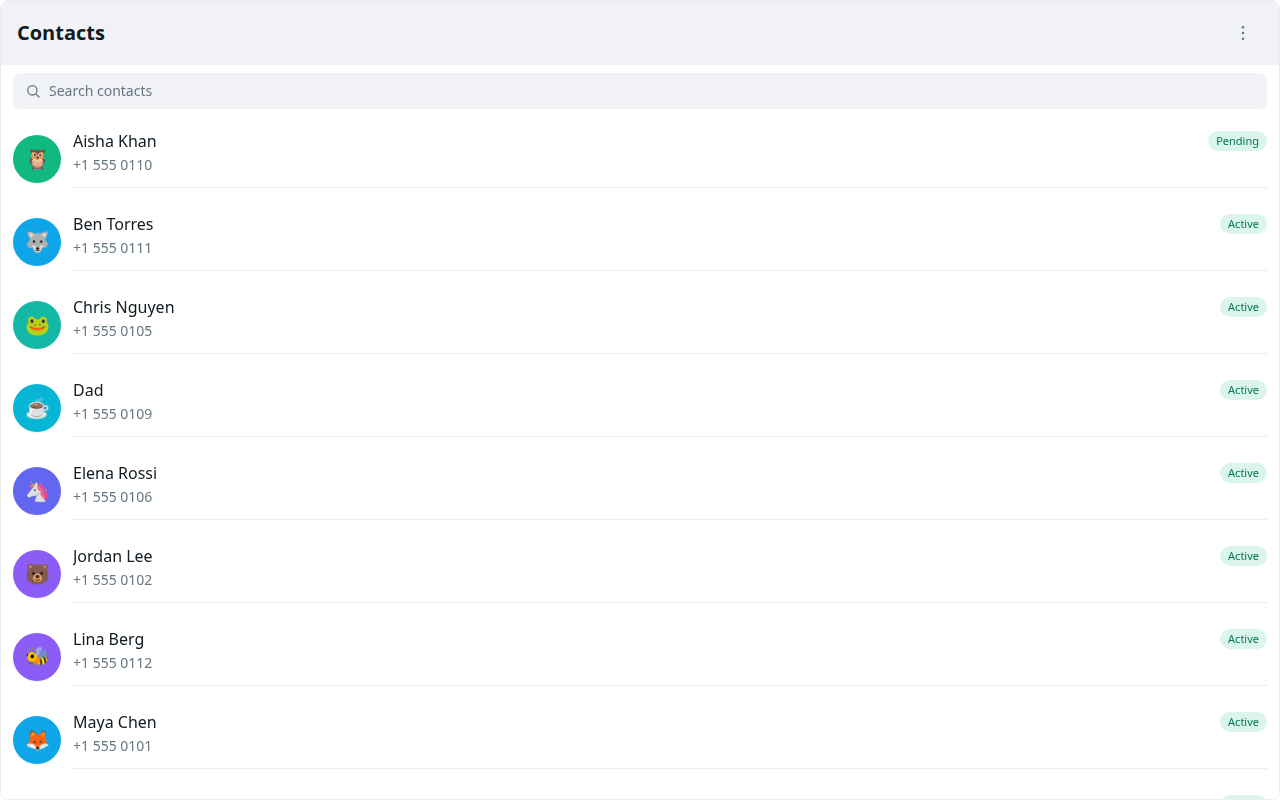
Statuses you will see:
- Pending — no public profile yet, or verify has not succeeded.
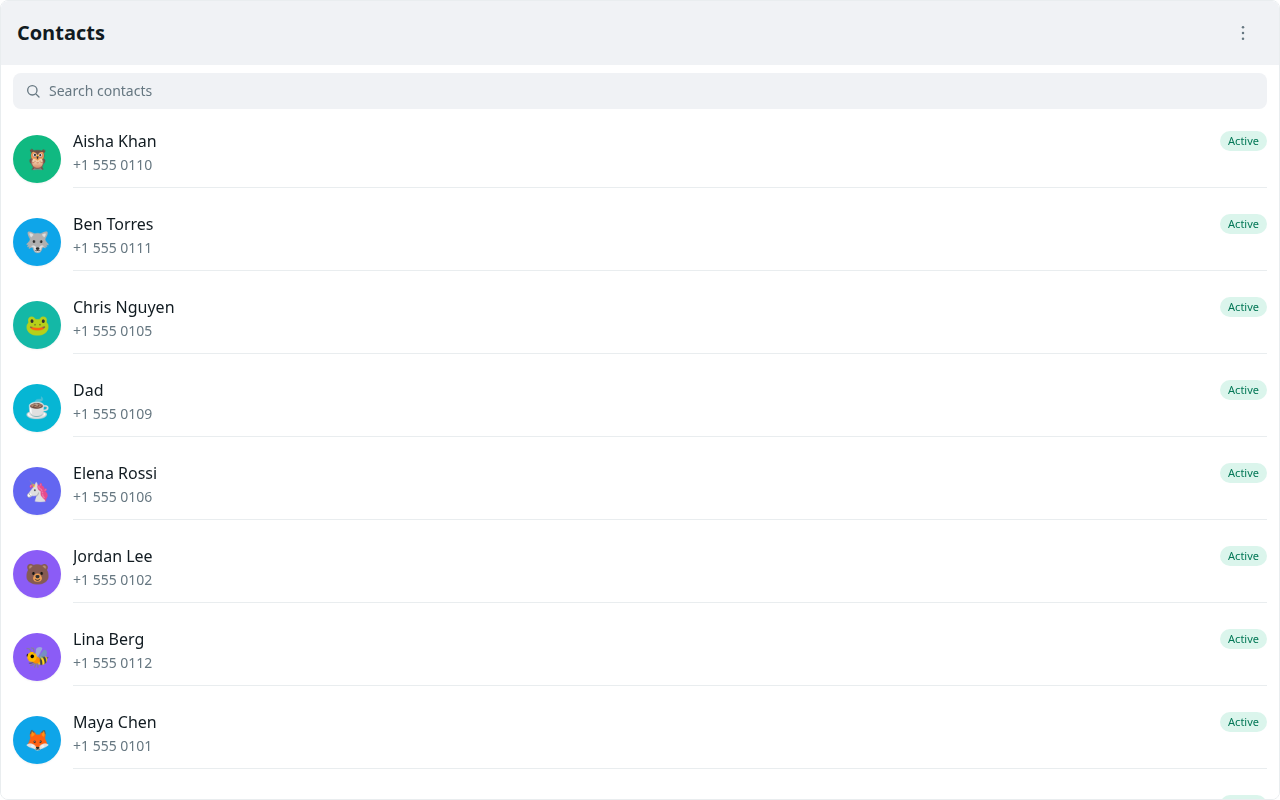
- Active — profile fetched; git send works.
- Connecting — live handshake in progress; git send still works.
- Live — direct link is up; send uses that link.
- Unreachable — the peer profile could not be fetched; the composer stays disabled.
6. Send on git
If the contact is Active or Connecting (not yet Live), open Chats, pick the thread, type, send.
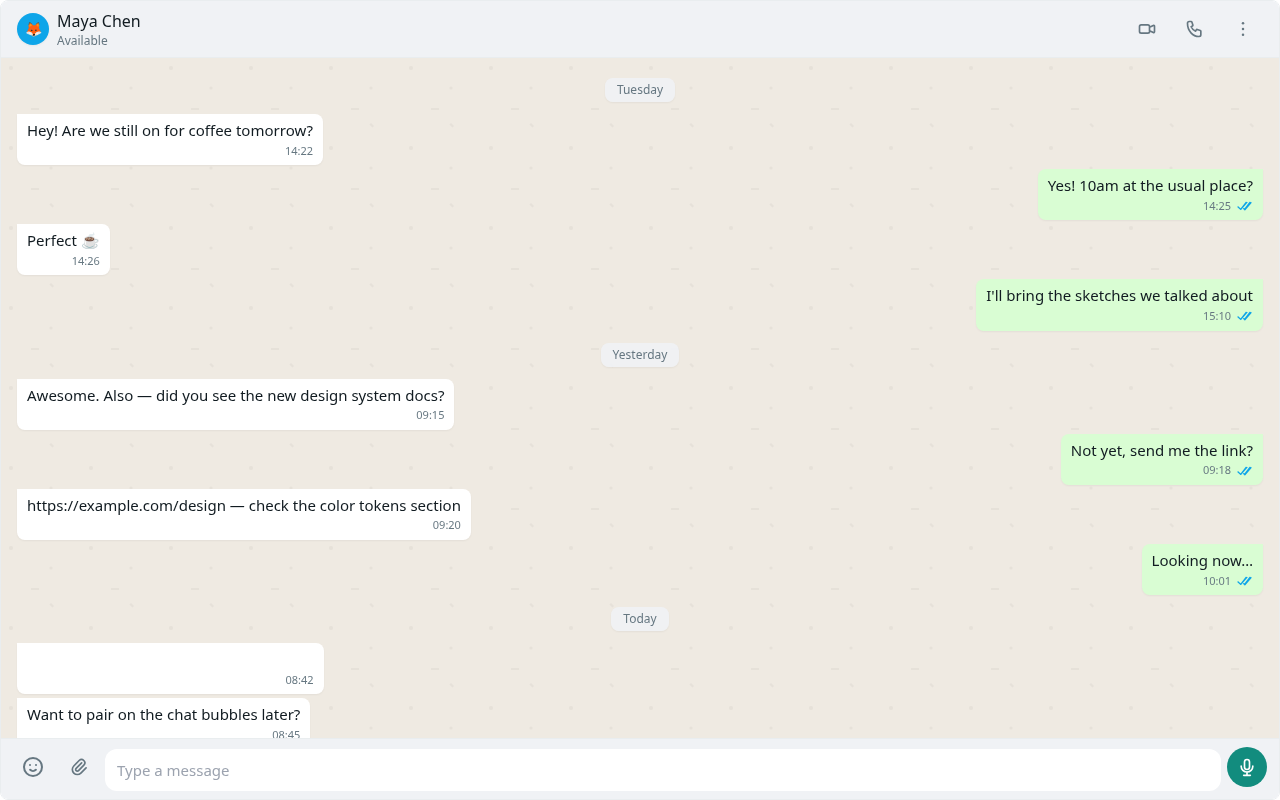
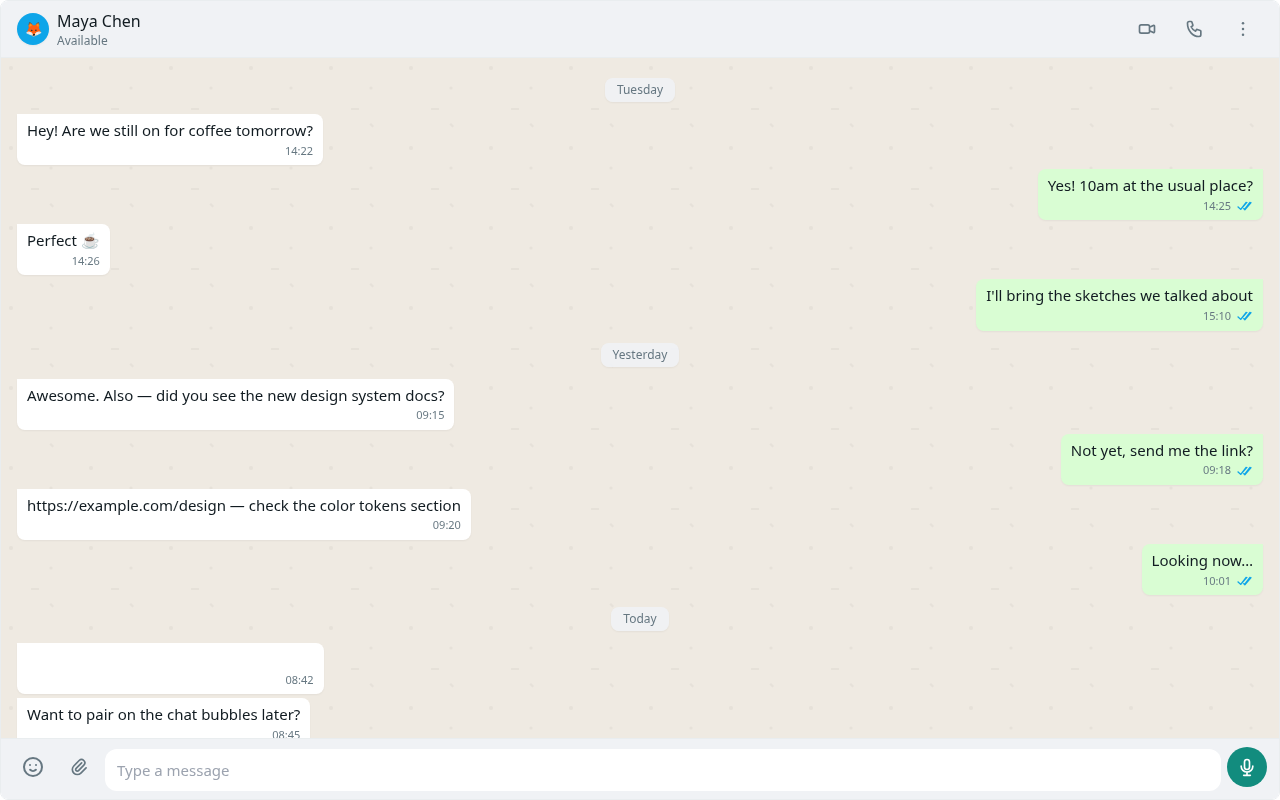
- The bubble appears immediately with a single tick. That means the message is written locally.
- Double gray ticks mean the send has been pushed to the git host (or, on the live path, the peer acknowledged).
- Double blue ticks mean the other person opened the chat (a read receipt).
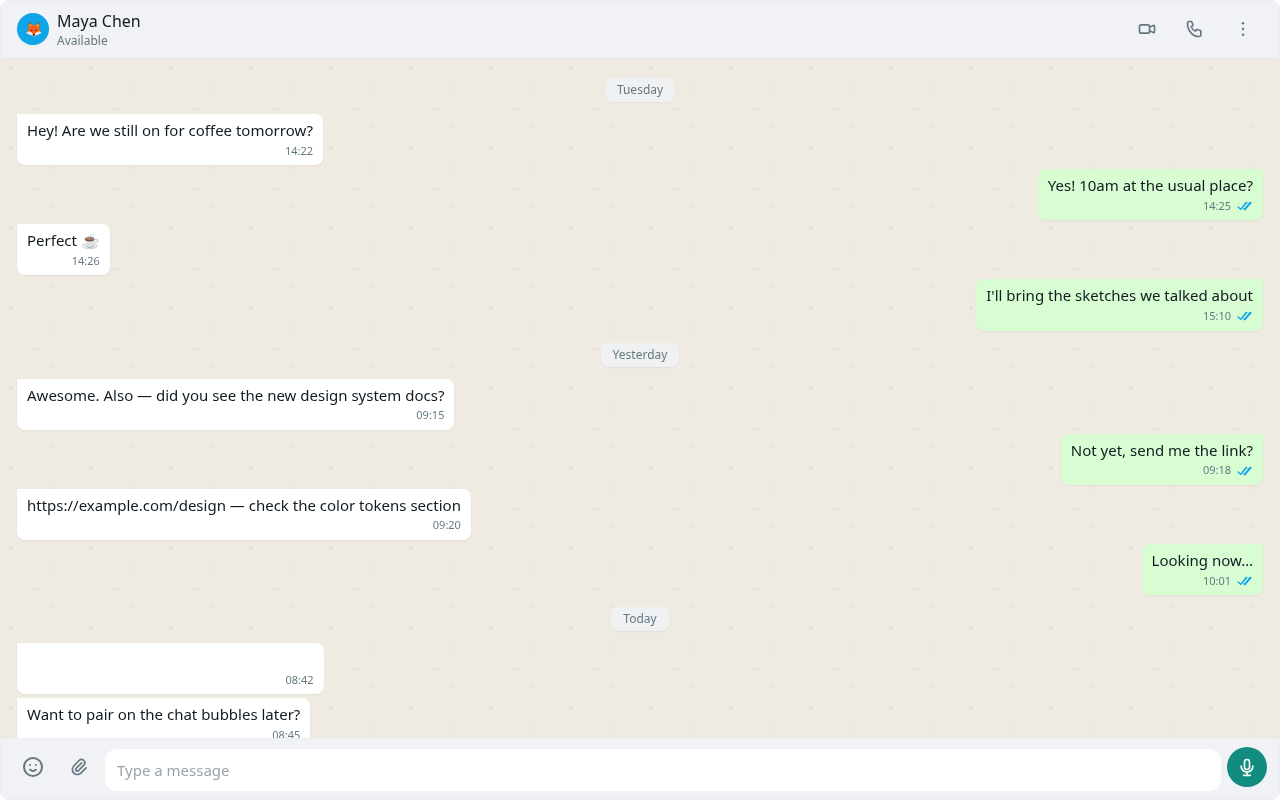
On the other tab, wait for the automatic poll or tap Poll now. The countdown in the header is the time until the next pass. Poll reads local clones that a background worker keeps updated.
7. Optional: go Live
Keep both tabs open. After a poll or two, contacts that finish the handshake show Live. Sends then travel on the direct link — no outbound row in git for that message. Close one tab: the other falls back to git on the next send.
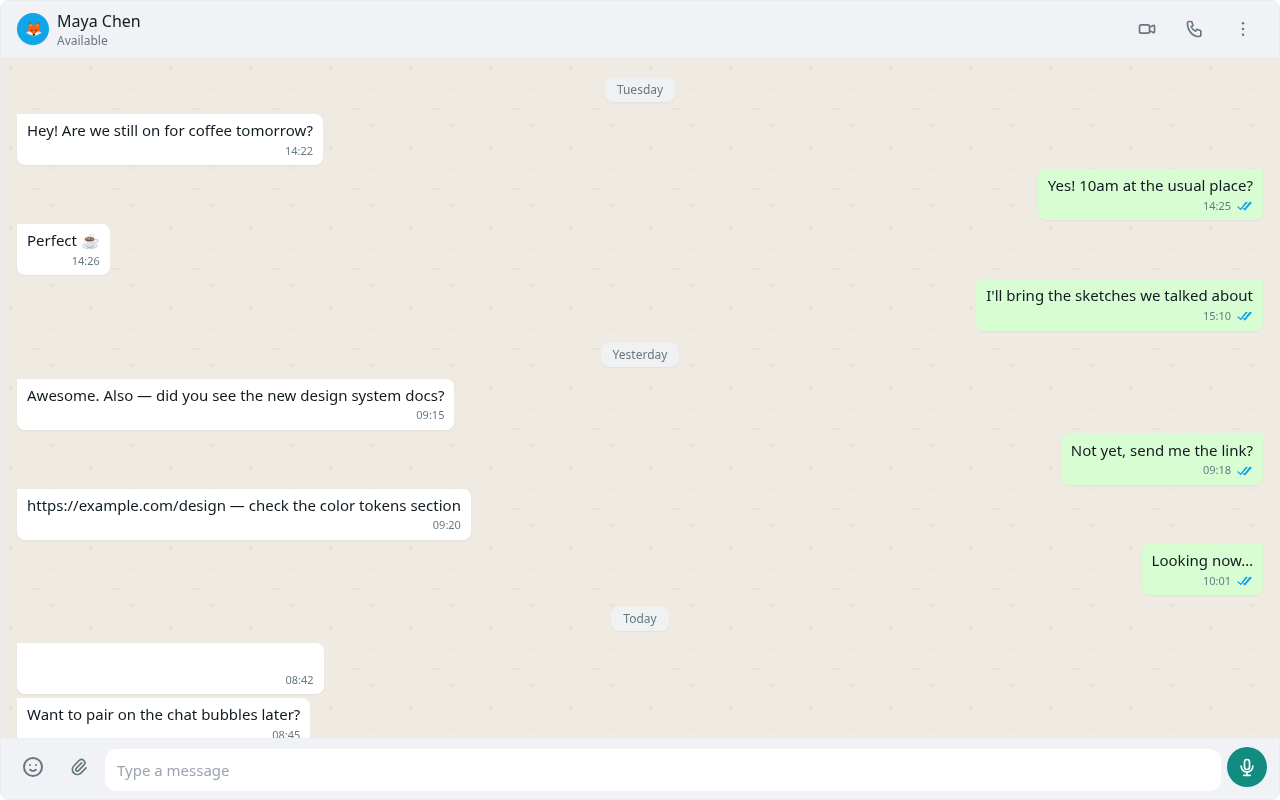
Live needs both apps running and able to form a peer connection. Networks that block that path stay on git. That is still a working messenger; it is just not instant.
8. Read receipts
When Blair opens the chat, a read receipt is written (on git, to Blair’s repo; on live, over the link). Alex’s next poll (or the live ack) turns ticks blue.
If something stalls
- Connect fails on the web → CORS proxy, token, or the git helper did not load. See Troubleshooting.
- Contact stuck on Pending → finish profile setup on the other side, then wait for poll or Retry.
- Single tick forever → the push has not landed. Check token write permission (
write deniedmeans the host authenticated you but refusedgit-receive-pack). - No message on the other side → confirm each contact URL points at the other person’s repo, not your own, and that the sender’s sync actually pushed.
When the first ticks turn blue, you are done. From here, Send, receive, and read receipts and Live vs offline cover the daily rhythm.